
Edit your homepage words
Change the headline, your point of view, the About text and the other words on your homepage, and choose which sections show.
Open Website > Content and choose Homepage text. Each box has its own Save button, so save one section before moving to the next. Saved changes are live on your site straight away.
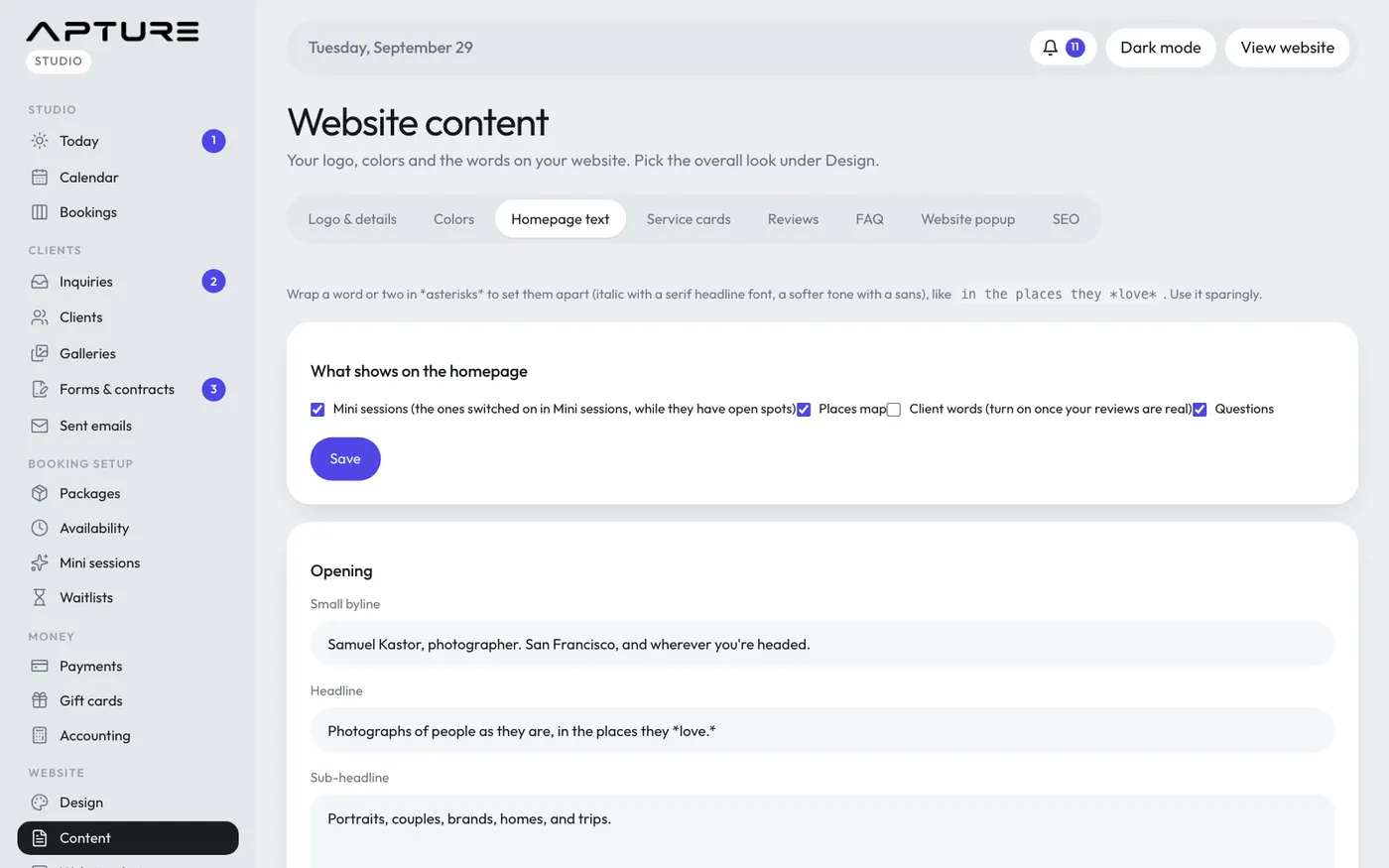
What shows on the homepage
Tick the sections you want, then Save:
- Mini sessions: the ones switched on in Mini sessions, while they have open spots.
- Places map: your pins from Website > Location map.
- Client words: your reviews. Turn this on once your reviews are real.
- Questions: your FAQ.
Reviews and questions only show when they're ticked here and you've added at least one.
The sections
- Opening: the Small byline above the headline, the Headline and the Sub-headline. The byline is also the line under your logo on your link-in-bio page.
- Point of view: a heading and a few sentences about how you work.
- About: a heading, your story (leave a blank line between paragraphs), a Sign-off name that is also used in emails, and optional Highlights, one per line (like 12 years, 400+ sessions, Dog person). Designs show highlights as stats or fun facts.
- Pricing footnote: shown under your price list. Good for travel fees or add-ons.
- Travel map: the text above the travel map.
- Contact: the heading and text on the contact section.
- Closing call to action: the heading and text at the end of the page that lead to booking.
Setting a word apart
Put an asterisk right before and right after a word or two to set them apart. For example, typing an asterisk on each side of "love" in "in the places they love" shows that word in italic with a serif headline font, or in a softer tone with a sans font. Use it sparingly, once or twice a page.
Still have a question? support@aptureapp.com