
Add photos to your website
Upload your hero slideshow, portfolio, service card photos and About portrait.
Open Website > Website photos. Until you upload your own, sample photos show dimmed and marked placeholder. Uploads go live on your site straight away.
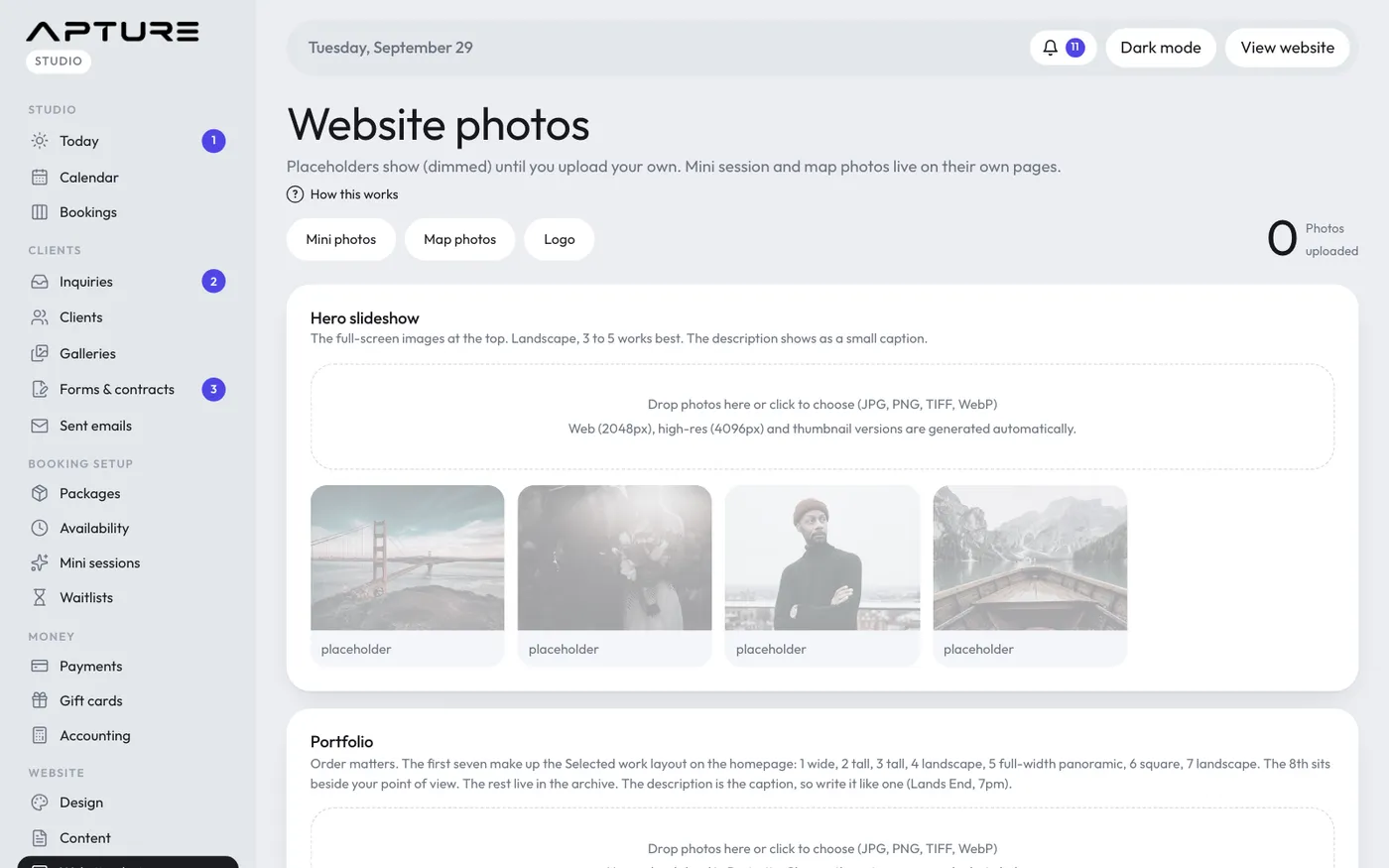
Hero slideshow
The full-screen images at the top of your homepage. Landscape photos work best, 3 to 5 of them. The description you type under each shows as a small caption.
Portfolio
- Upload your photos. New uploads land in Portraits.
- Under each photo, choose its category (Portraits, Couples, Families, Branding, Real Estate, Pets or Travel) and type a description. The description is the caption, so write it like one, for example "Lands End, 7pm". Click Save under the photo.
- Use the arrows to change the order.
Order matters. The first photos make up the Selected work layout on your homepage and the rest go in your portfolio. Visitors can filter the portfolio by category. Only categories that have photos show.
Service cards
One photo per service card. Click Upload (or Replace) under each. To add or rename services, go to Website > Content > Service cards.
About photo
A portrait of you, used in the About section.
Removing a photo
Click the ✕ on a photo, then click again to confirm. For service and About photos this puts the placeholder back.
Photos that live elsewhere
The buttons at the top of the page take you to the others:
- Mini photos: on each mini session.
- Map photos: on each spot in Location map.
- Logo: under Website > Content > Logo & details.