
What Apture is and how the admin is laid out
A quick tour of Apture and the groups in the side menu, so you know where everything lives.
Apture runs the business side of your photography: your website, a booking page where clients pick a time and pay a deposit, a client portal, contracts and forms, galleries for delivering photos, and the money that comes with all of it. Clients pay you straight into your own Stripe account, and Apture takes no transaction fee.
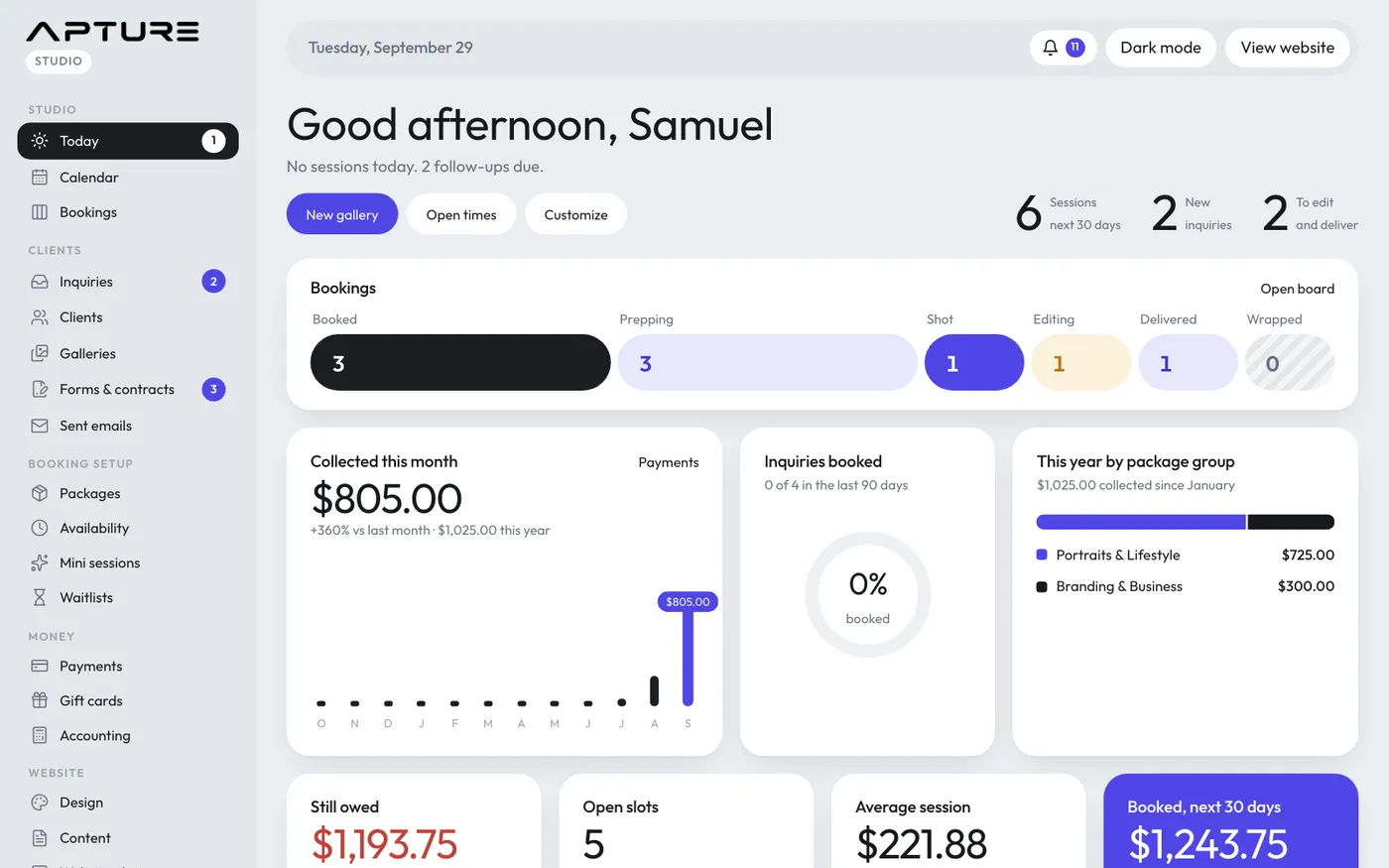
Everything you manage lives in the admin. The side menu is grouped by how often you'll need things: the day's work at the top, setup and money in the middle, and your Apture account at the bottom.
The menu groups
- Studio: Set up (while setup steps are left), Today, Calendar and Bookings. My sessions also appears when you've been assigned to shoot a session.
- Clients: Inquiries, Clients, Galleries, Forms & contracts and Sent emails.
- Booking setup: Packages, Availability, Mini sessions and Waitlists.
- Money: Payments, Gift cards and Accounting.
- Website: Design, Content, Website photos, Blog, Newsletters, Website visits, Location map and Web address.
- Account: Settings, Team, Billing, Help & support, Ideas & requests and Export your data.
Some menu items show a small number. On Today it counts bookings that need your attention, on Inquiries it counts new inquiries or follow-ups due, and on Forms & contracts it counts forms and contracts still waiting on a client.
The top bar
Across the top you'll find today's date, the notification bell, a button to switch between light and dark mode, and View website, which opens your public site in a new tab.
Where to start
New studios open on a short welcome checklist on the Today page. Follow it, or open Studio > Set up for the full guide. Your studio also comes with example clients and bookings so you can click around before your first real client arrives.