
Send a newsletter
Email news, open dates or mini sessions to many clients at once, and how unsubscribes work.
A newsletter is one email to many people: news, open dates, mini sessions. Open Website > Newsletters. The top of the page shows how many you've sent, how many people signed up for your emails, and how many unsubscribed or bounced.
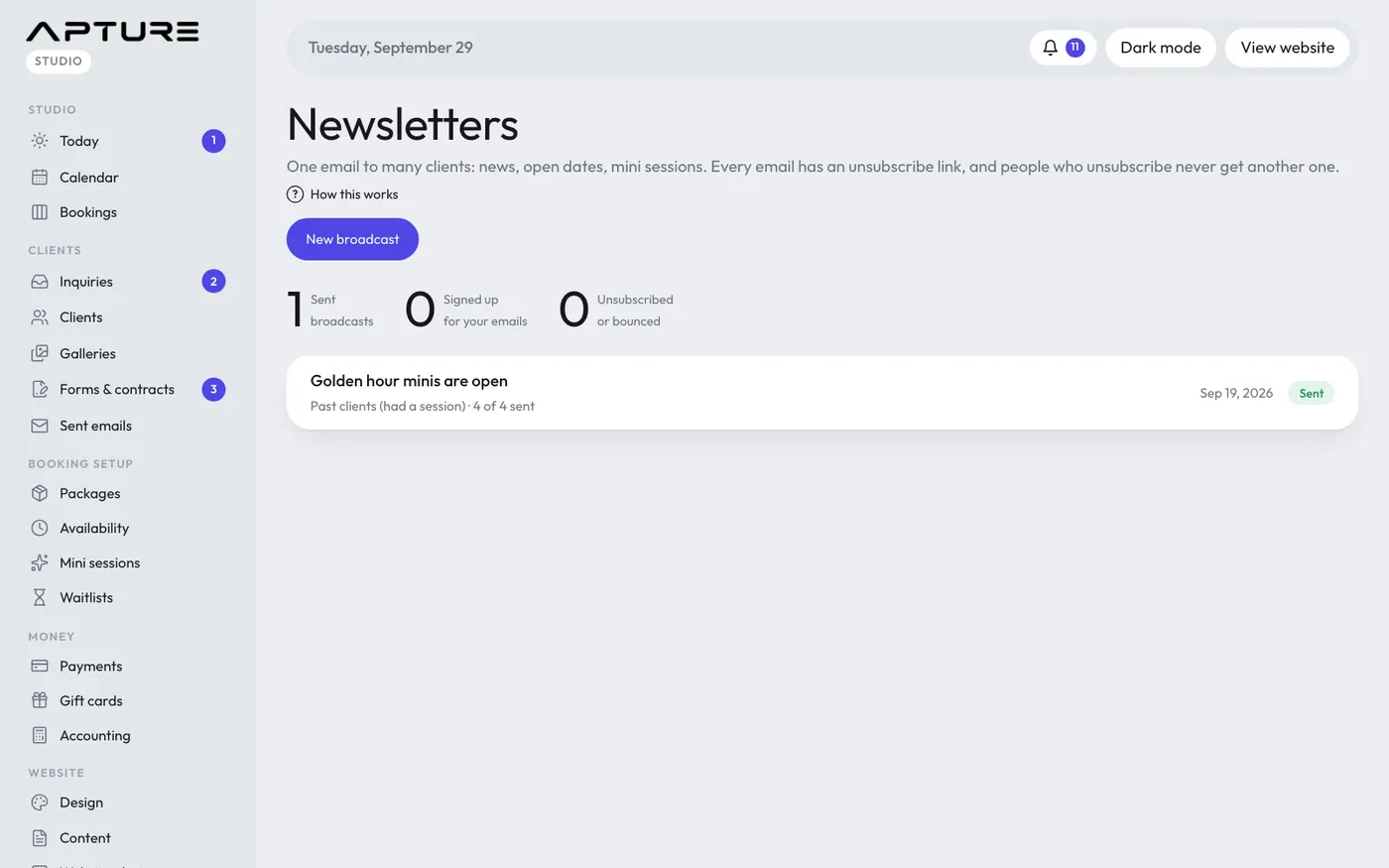
Write it
- Click New newsletter.
- Fill in the Subject and Message. {firstName} becomes each person's first name. A blank line starts a new paragraph.
- Optionally add a Button and its Button link, like "Book a spot" linking to your booking page.
- Choose who it goes to under Send to (see below).
- Click Save. The preview on the right shows the saved version as it will arrive.
Who gets it
- Everyone who signed up for your emails: people who joined from your website popup, plus gallery visitors who opted in.
- All clients
- Past clients (had a session)
- Leads (inquiries and signups who haven't booked)
- Clients with a balance due
- Gallery visitors who opted in
- Clients with a tag: type the tag in the Tag box, for example website-popup.
For every audience except sign-ups and opted-in gallery visitors, tick These people are my clients or asked to hear from me and save before sending.
Send it
- Click Send me a test to get a copy in your own inbox.
- Check the count under Ready to send?
- Click Send to followed by the number of people. Sending uses the saved version, so save first.
A progress bar shows while it sends. Afterwards the page shows how many were sent, skipped because they unsubscribed, or didn't go through.
Unsubscribes and limits
- Every newsletter has an unsubscribe link, added for you at the bottom. People who unsubscribe never get another newsletter from you. Addresses that bounce or report spam are left out too.
- Up to 2,000 people per newsletter and 3,000 emails a day.
- Only saved drafts can be deleted, with Delete draft. A sent newsletter stays in the list.
Still have a question? support@aptureapp.com