
Open up times on Availability
Add the dates and times clients can book, one at a time or as back-to-back spots.
Clients can only book a time you've opened. You add times on Booking setup > Availability. Times are in your studio's time zone, shown at the top of the page.
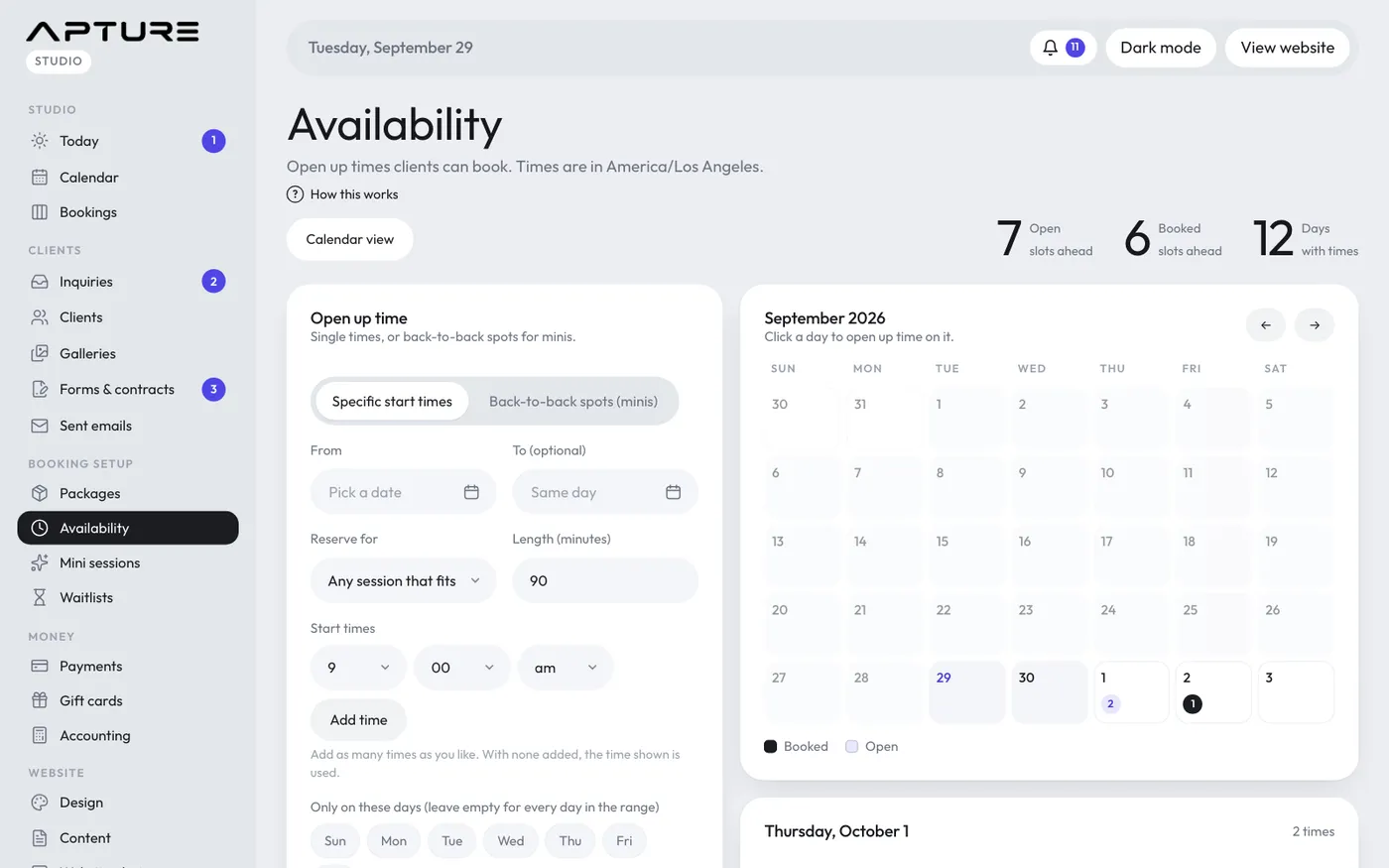
Add specific start times
- Go to Booking setup > Availability. You can also click a day in the month view to start on that date.
- Under Open up time, keep Specific start times selected.
- Pick a From date. Add a To (optional) date to repeat the same times over a range of days.
- Under Reserve for, keep Any session that fits or choose one package so only that package can use these times.
- Set Length (minutes). Choosing a package fills in its length.
- Pick a start time and click Add time. Repeat for each start time you want on those days.
- Optional: tick days under Only on these days (for example only Saturdays in the range), add a Private note only you see, or a Premium for times worth more.
- Click Add slots.
A time already open at the same start is skipped, so you won't get doubles.
Add back-to-back spots
For mini session days and other runs of short sessions:
- Click Back-to-back spots (minis).
- Set the date, Each spot (minutes) and First spot starts.
- Set either Number of spots or Or stop by (optional) for a finish time, plus a Break between (minutes).
- Check the preview of start times, then click Add slots.
Each spot is booked separately.
How clients see your times
A client only sees open times long enough for the package they chose, and only times that are free for that package. Times that clash with your connected Google Calendar are hidden from clients and marked busy in your calendar on this page. To connect a calendar, go to Settings > Calendar sync.
Adding times also emails anyone on a waitlist that could now book. See Waitlists.