
Run mini sessions
Create a themed mini session with its own page, add spots and show it on your homepage.
Mini sessions are short, themed sessions like Date Night Minis or Holiday Minis. Each one has its own page to share, and can show on your homepage while it has open spots.
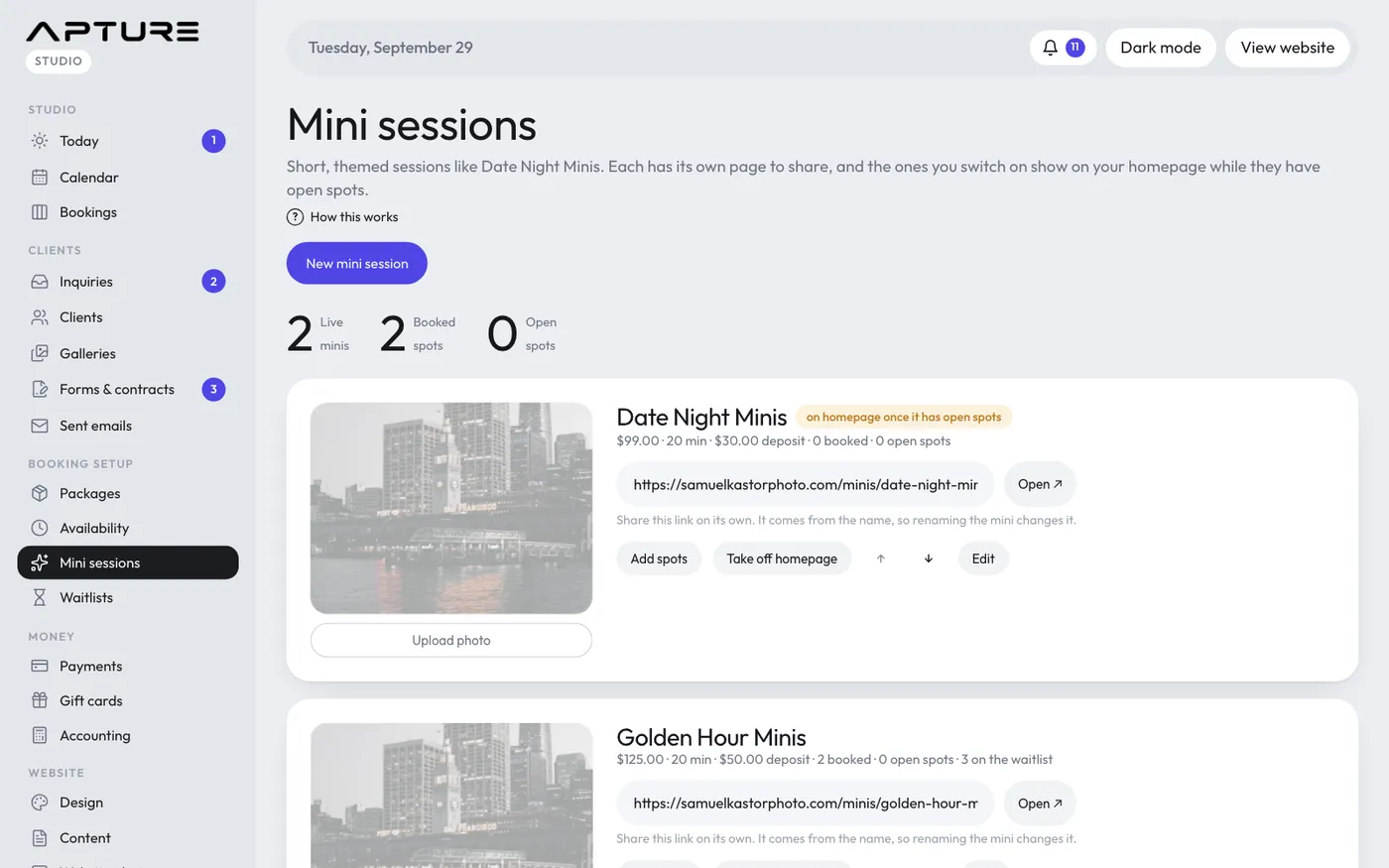
Create a mini session
- Go to Booking setup > Mini sessions and click New mini session.
- Fill in the details:
- Small label, Title and Highlighted word (in your accent color). Together they make the heading, for example "Date Night" and "Minis".
- Price ($), Deposit ($) (at least $0.50) and Length (min).
- Button text, Location and One-line summary (shown in booking + pricing).
- Description and What's included (one item per line).
- Leave Bookable and visible ticked and click Create mini session.
- Use Upload photo to add a cover image.
Each mini creates its own package, which starts in a group called Mini Sessions. On the booking page, a mini only offers its own spots, not your general open times.
Add spots
Click Add spots. It opens Availability with the mini chosen, back-to-back mode on and the length filled in. Set the date, first start time and number of spots, then click Add slots. See Open up times on Availability.
Share it
Each live mini shows its link and an Open button. The address comes from the name, so renaming the mini changes the link. Share it after you've settled on the name.
Show it on your homepage
- Click Show on homepage or Take off homepage. Several minis can be on at once.
- Use the arrows to set their order.
- A mini only appears once it has open spots. The pill says on homepage once it has open spots until then.
- If the Mini sessions section of your homepage is turned off, a note at the top of the page links to where you turn it on.
Waitlist and deleting
When every spot is taken, clients can join the mini's waitlist. See Waitlists.
To delete a mini, click Edit, then Delete this mini session. If anyone booked it, its package is hidden instead so the history stays.