
Work through inquiries and follow-ups
Track messages from your contact form, their status and when to follow up.
Messages from your website's contact form land in Clients > Inquiries. Each one gets a follow-up date so nobody slips through. The menu badge counts new inquiries or follow-ups that are due.
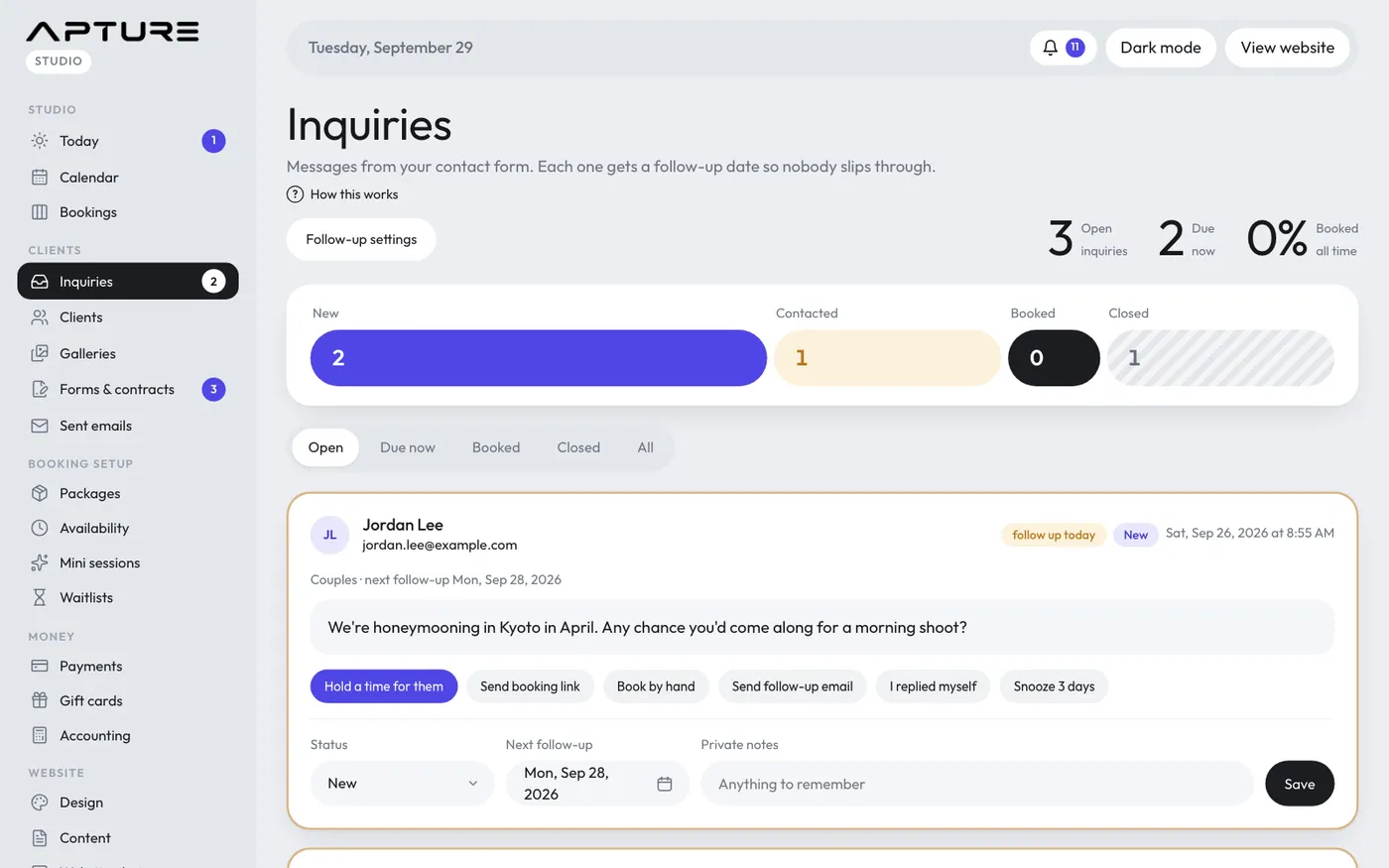
Statuses
- New: nobody has replied yet.
- Contacted: you've been in touch. Sending a follow-up, a booking link or a hold moves a new inquiry here.
- Booked: they booked. This happens on its own when someone with the same email pays a deposit or you add a session for them by hand.
- Closed: not going ahead.
Use the tabs to see Open, Due now, Booked, Closed or All. Inquiries due for a follow-up show follow up today.
Buttons on an open inquiry
- Hold a time for them, Send booking link and Book by hand: see Turn an inquiry into a booking.
- Send follow-up email: sends your follow-up template and sets the next follow-up date.
- I replied myself: marks it Contacted when you answered from your own email.
- Snooze 3 days: moves the follow-up date three days out.
Under each inquiry you can also change the Status, set the Next follow-up date and keep Private notes, then click Save. Marking one Booked or Closed clears its follow-up date.
Set up follow-ups
Click Follow-up settings (or go to Settings > Follow-ups) to choose:
- First follow-up after (days), Then every (days) and Stop after (follow-ups).
- The Subject and Email. You can use {firstName}, {name}, {sessionType}, {bookingLink} and {signoff} (your sign-off name).
- Send follow-ups automatically. When it's on, the daily job emails due inquiries for you. When it's off, you see them on your Today page and in a daily email, and send each with one click.
If a follow-up fails to send, it stays due. Check Clients > Sent emails for the reason.
Still have a question? support@aptureapp.com