
Inquiry follow-ups
Get reminded to follow up with people who asked about a session, or let the studio send the follow-ups for you.
Every inquiry gets a follow-up date. When it's due, the inquiry shows as due in Clients > Inquiries, on your Today page and in your daily digest.
Settings
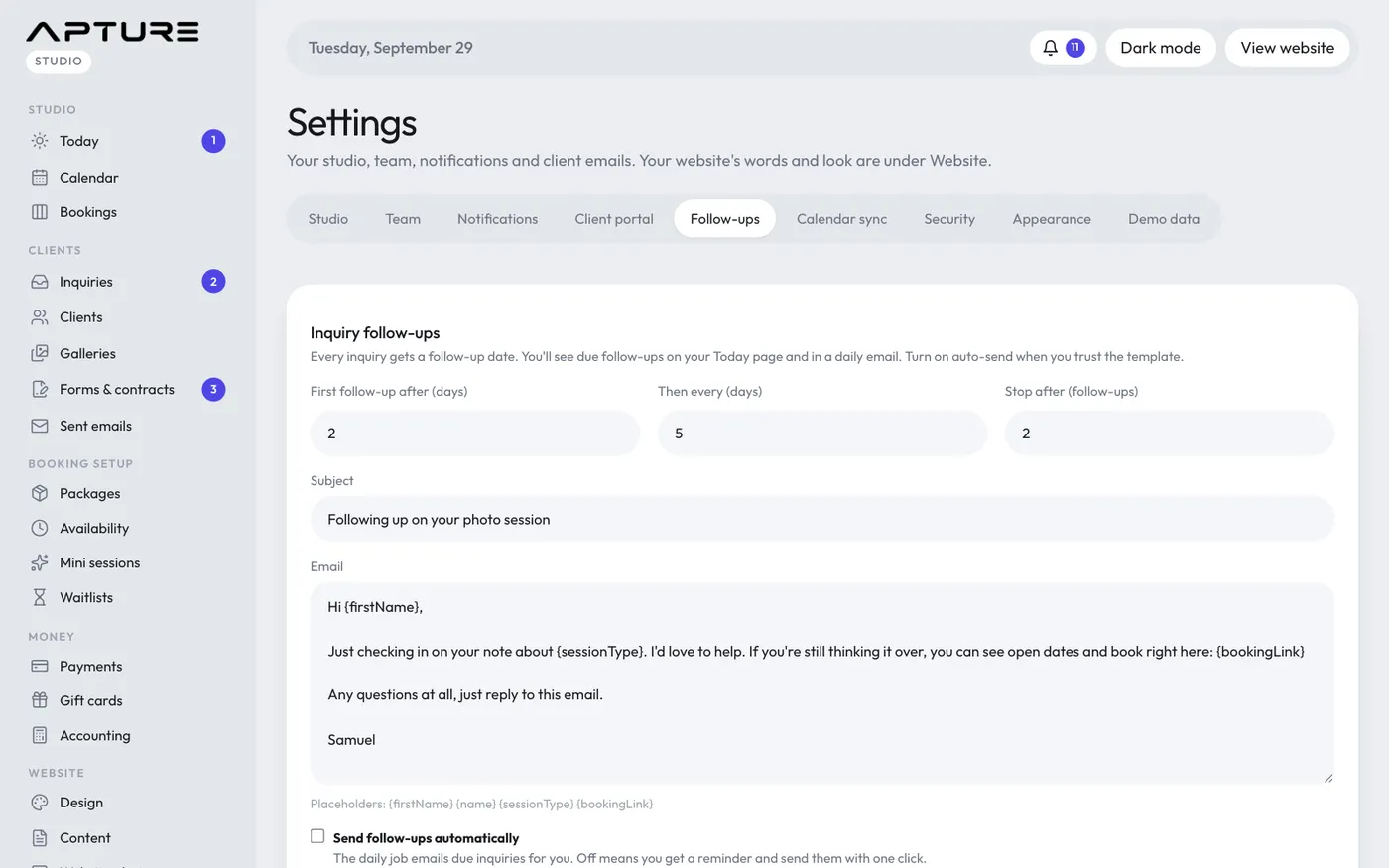
Go to Settings > Follow-ups:
- First follow-up after (days): how long after the inquiry the first one is due. Default 2.
- Then every (days): the gap between follow-ups. Default 5.
- Stop after (follow-ups): how many to send before stopping. Default 2.
- Subject and Email: the message. You can use {firstName}, {name}, {sessionType}, {bookingLink} and {signoff}. {signoff} is your sign-off name from Website > Content (the About section).
- Send follow-ups automatically: when on, the daily run emails every due inquiry for you. When off, you're reminded and send each one with a click.
Click Save follow-ups.
Sending by hand
On an inquiry that's due, click Send follow-up email to send your template now, or Snooze 3 days to push it back. You can also set Next follow-up to any date, or clear it.
When follow-ups stop
- After the number you set in Stop after.
- When the person books. Their open inquiries with the same email are marked Booked.
- When you mark the inquiry as anything other than new or contacted.
Sending a follow-up marks a new inquiry as contacted. If a follow-up fails to send, it stays due so it's tried again. Check Clients > Sent emails for the reason.
Still have a question? support@aptureapp.com