
Sent emails and the automatic emails
Check whether an email reached a client, and see which emails the studio sends on its own.
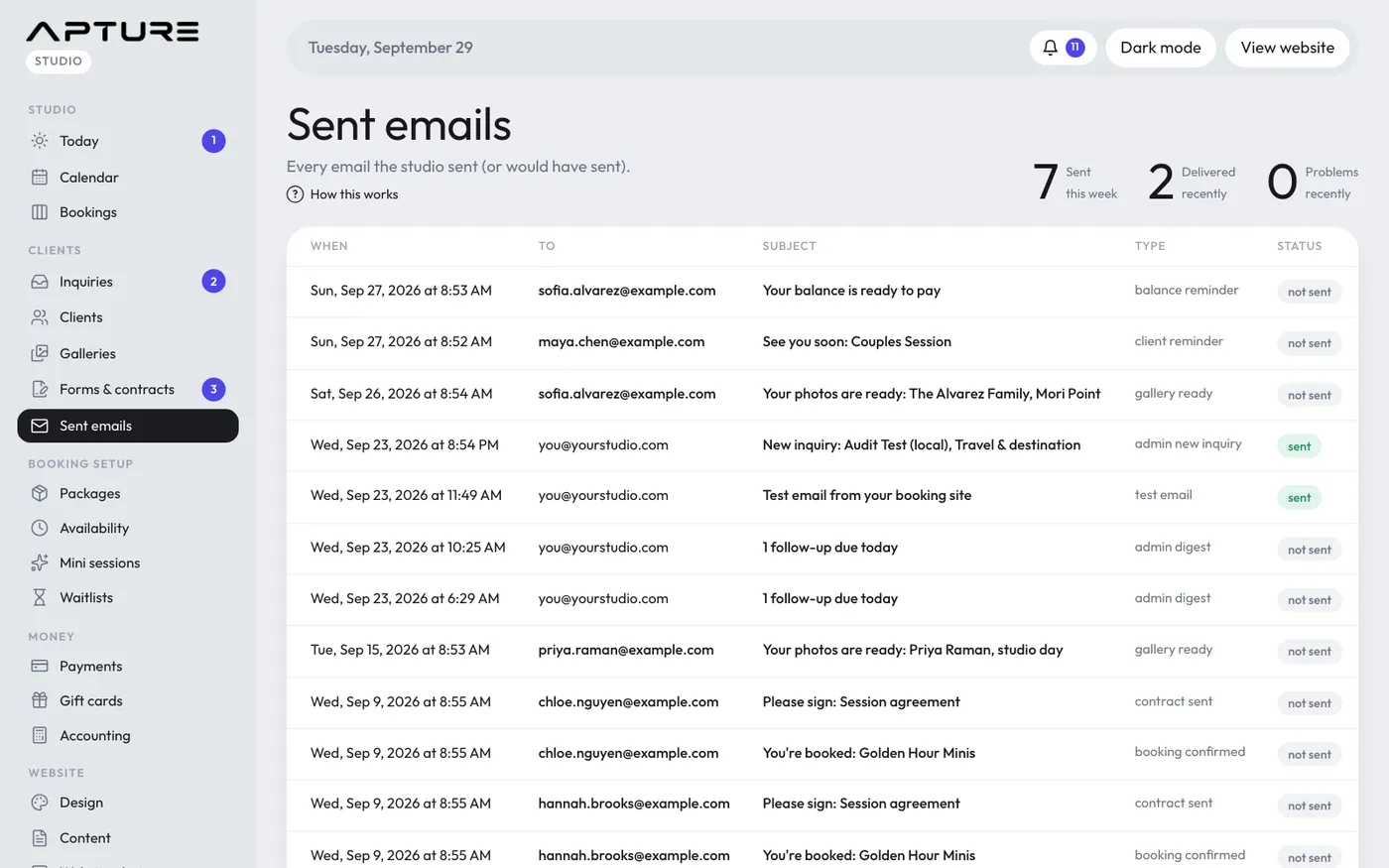
Clients > Sent emails lists the last 200 emails your studio sent, newest first, with who it went to, the subject, the type and the status. Click a subject to read the email as it was sent. A client's page shows their last 20 under Emails.
Statuses
- sent: handed to the mail service.
- failed: it didn't go. The reason shows under the subject.
- bounced or marked as spam: the address didn't accept it, or the person reported it.
- paused: your studio's email is paused after too many bounces or spam reports. Apture support can turn it back on.
- not sent: recorded only. Demo clients with test addresses never get real email.
Emails clients get automatically
- You're booked: when a deposit is paid, with their portal link. It mentions the contract only when one is set to send automatically. It also goes when you add a session by hand with the confirmation ticked.
- Please sign or Quick form: when a contract or form is sent, including your automatic contract after booking.
- Your signed copy: right after they sign, with the PDF attached.
- Rescheduled: when they move a session themselves.
- New time and Cancelled: when you move or cancel a booking with the email box ticked.
- Your gallery closes in N days: before a gallery with an end date closes, if turned on in Settings > Notifications.
- You're on the waitlist and A spot opened: for waitlists.
- Gift card emails to the person receiving a card and the buyer.
- Sign-in link and Set your portal password: when a client asks for them.
- Inquiry follow-ups, if you turn on auto-send. See Inquiry follow-ups.
Emails you send with a click
Portal link, form reminders, held times, booking links for inquiries, and the buttons on a booking: Portal link, Questionnaire reminder, Balance reminder, Gallery is ready and Ask for a review.
Emails you get
New bookings, new inquiries, cancellation requests, reschedules, overpayments, signed contracts, completed forms and the daily digest go to the address in Settings > Notifications. See Notifications and the daily digest.
Still have a question? support@aptureapp.com