
A client's page
Everything about one client in one place: sessions, money, forms, galleries, emails and their portal.
Click a name in Clients > Clients to open their page.
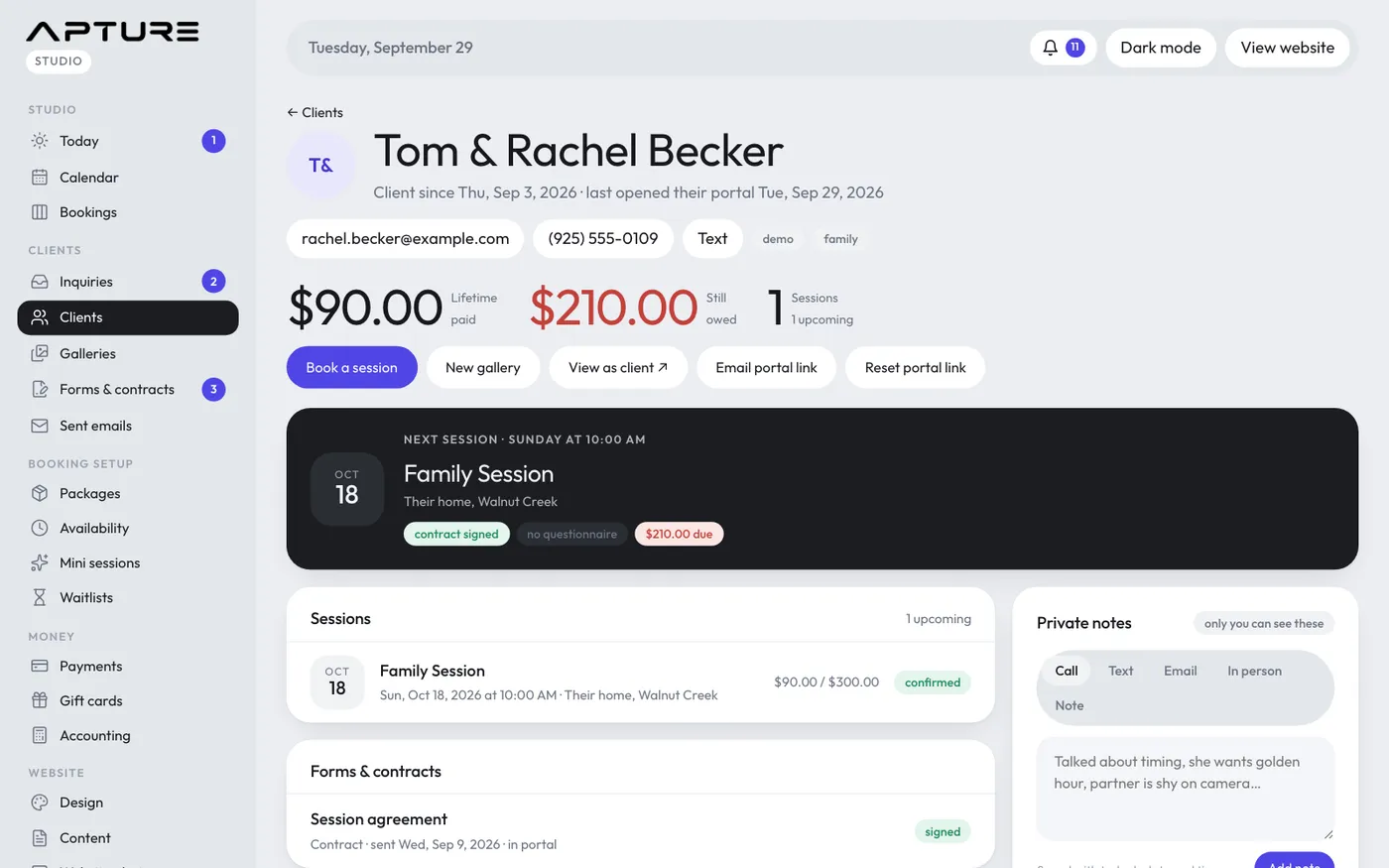
At the top
You see when they became a client, when they last opened their portal, their email and phone (with a Text link when they have a phone number), their tags, and three numbers: lifetime paid, still owed and sessions.
The buttons below:
- Book a session jumps to the booking form further down.
- New gallery starts a gallery linked to this client.
- View as client opens their portal exactly as they see it.
- Email portal link sends them a link to their portal.
- Reset portal link gives them a new link. See The client portal.
The main column
- Next session shows the date, package, location, and whether the contract is signed, the questionnaire is in and the session is paid. Click it to open the booking.
- Sessions lists every booking with paid and total amounts.
- Forms & contracts lists everything you've sent, with its state: waiting, opened, completed, signed or void.
- Send a form or contract sends one straight to this client. See Sending a form or contract.
- Galleries shows their galleries with photo and visitor counts.
- Book a session by hand adds a session without online payment. Pick the package, date and start time, and optionally a location, a custom price, what was already paid and how. Leave Send the session agreement to sign ticked to send your contract, and Email them a "You're booked" confirmation ticked to send the confirmation, then click Add session. See Add a session by hand.
The side column
- Private notes: see Private notes and client details.
- Details: edit their name, phone, tags and "About them", then click Save. Their email can't be changed here.
- Portal link: their private link, ready to copy.
- Emails: the last 20 emails sent to them. Click one to read it.
- Remove client or Delete client (owners and admins only): see Deleting a client or erasing their details.
Still have a question? support@aptureapp.com