
The client portal
Each client's private page for their sessions, contract, questionnaire, payments and galleries, and how they sign in.
Every client gets a private portal on your website. It shows their upcoming sessions with a checklist (contract, questionnaire, balance), forms waiting for them, their galleries, your prep guide, past sessions and a link to leave a Google review.
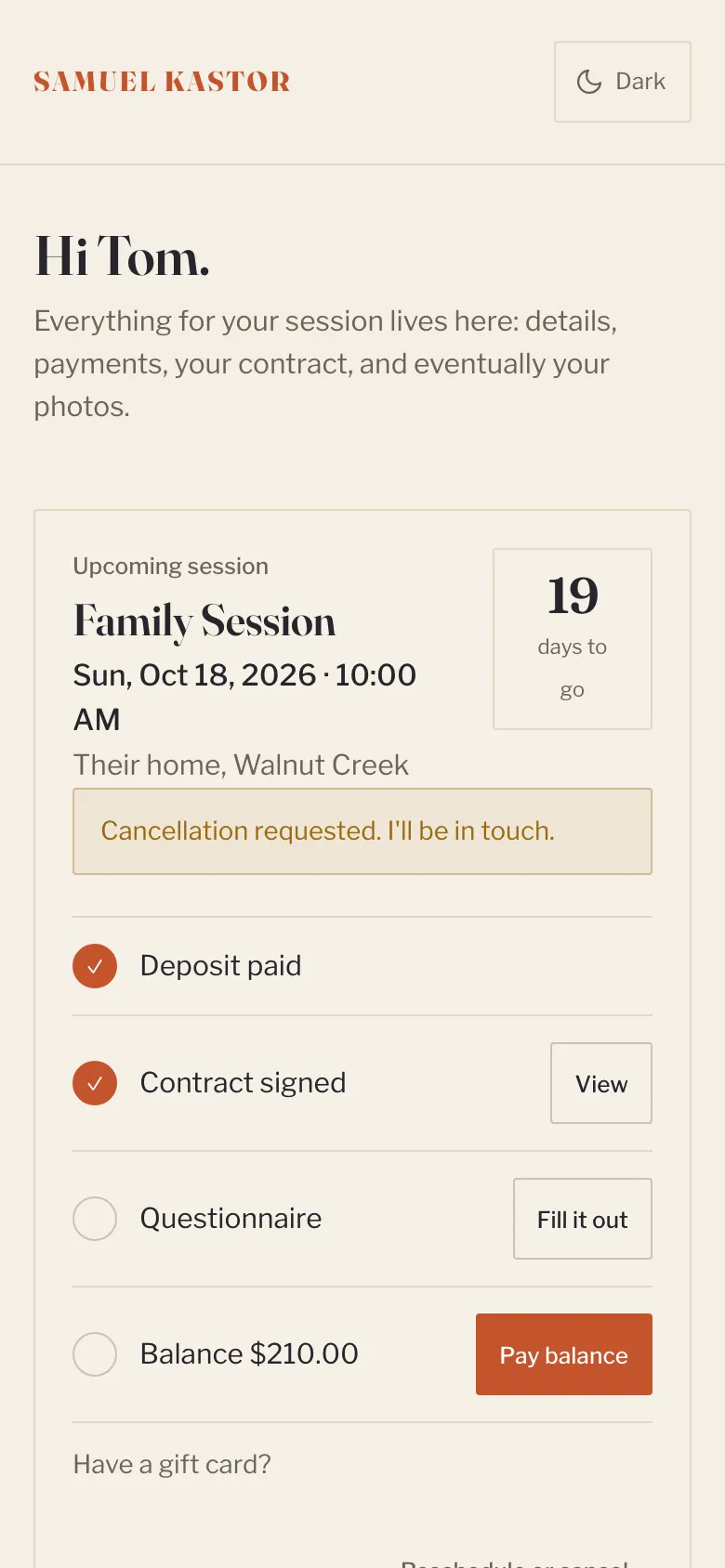
From the portal a client can sign their contract, fill in the questionnaire, pay their balance, use a gift card, and move or ask to cancel a session.
How clients get in
- Their private link. Every booking confirmation includes it. Anyone with the link can see the portal, so it's only sent to the client. Opening it remembers them on that device for 60 days, so their galleries open without a password.
- Email and password. From the Your account part of their portal they can ask for an email to set a password. After that they sign in at /portal on your website.
- An emailed sign-in link. On /portal they can type their email and click Email me a link. The link works once, within 30 minutes.
Sending the link yourself
On the client's page, click Email portal link. You can also copy the link from the Portal link card, or click View as client to see what they see.
If a link was shared or leaked
Click Reset portal link on the client's page, leave Email them the new link ticked if you want to send it, and click Reset link. Every old link and remembered device stops working. Their password stays the same.
What the portal says
Go to Settings > Client portal to change:
- Welcome message at the top of every portal.
- Session prep guide, shown before an upcoming session. Leave a blank line between paragraphs.
- Self-reschedule cutoff: how many hours before a session a client can still move it themselves (48 by default).
- Self-reschedules allowed per booking (2 by default). After that, clients send you a request.
- Cancellation policy, shown when a client asks to cancel.
Click Save when you're done.