
The Clients list
Find anyone you've worked with, see who owes you or has forms waiting, and add clients yourself.
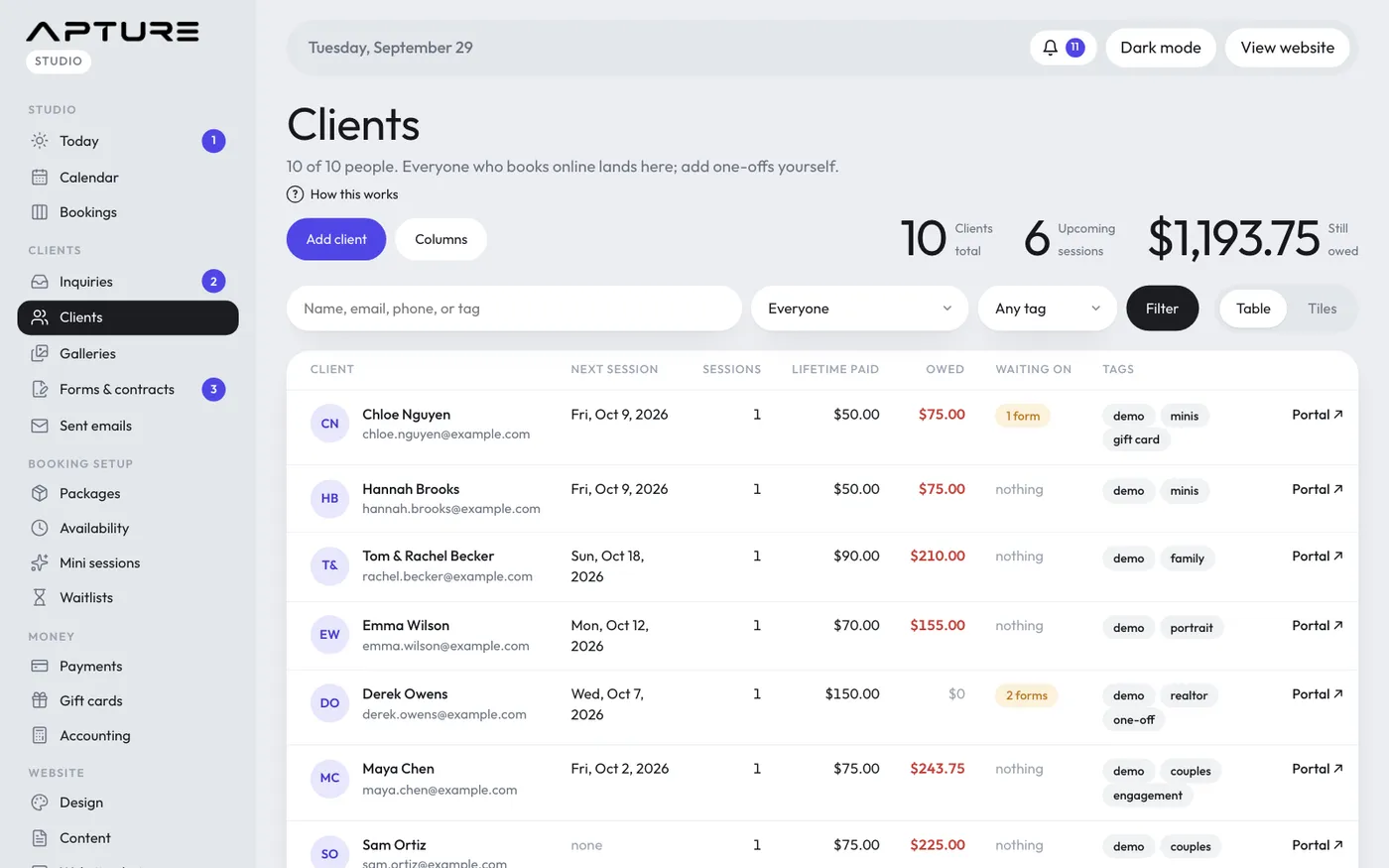
Clients > Clients lists everyone in your studio. You rarely need to add people by hand: anyone who books online, sends an inquiry you then book, or gets a form from you is added on their own.
Adding a client yourself
For sessions arranged by text, DM or in person:
- Open Clients > Clients and click Add client.
- Fill in their name and email. Phone, tags and "About them" are optional.
- Click Save client.
You land on their page, where you can book a session, send a form or make a gallery. If the email already belongs to a client, you're taken to that client instead of making a duplicate.
Searching and filtering
- The search box finds a name, email, phone number or tag.
- The Show menu narrows the list: has an upcoming session, owes money, unsigned contract, forms waiting, past clients only, or no sessions yet.
- The tag menu shows only people with one tag. Click a tag in the table to do the same.
- Click Filter to apply, and Clear to go back to everyone.
Table or tiles
Switch between Table and Tiles at the top right. Tiles group people into upcoming sessions, owe a balance, past clients and no sessions yet.
In the table, click any column heading to sort by it. Click Columns to choose what shows (email, phone, next session, lifetime paid, owed, forms waiting, contract, latest note, last portal visit and more), then Save view. Your columns and sort are remembered next time.
The Portal link at the end of each row opens that client's portal in a new tab.
Erased clients are hidden from the list. Pick Erased clients in the Show menu to see them. See Deleting a client or erasing their details.