
E-signatures and the signed record
How clients sign contracts, what's recorded, and how to download or check a signed copy.
Every contract you send includes an e-signature. There's nothing to connect or pay for.
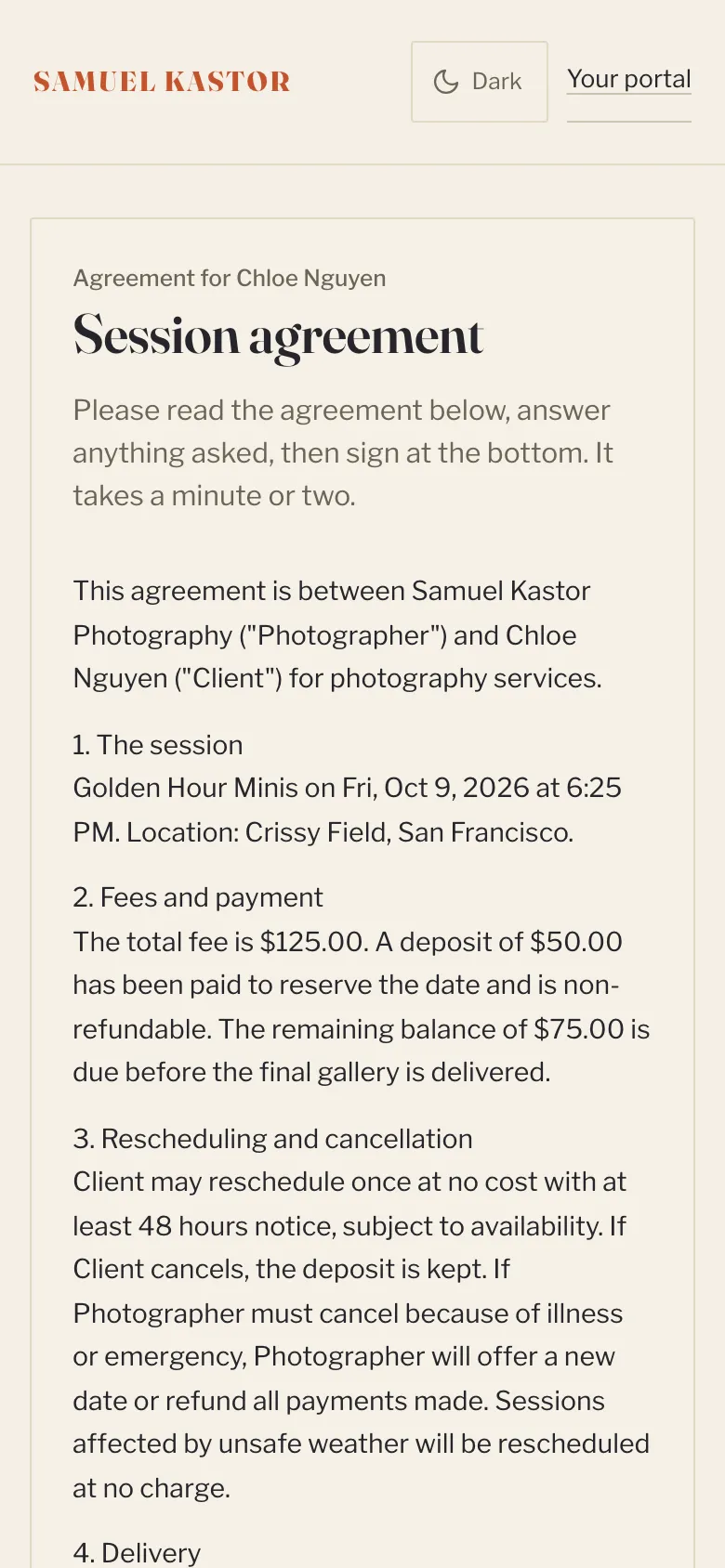
What the client does
They open the contract from the email or their portal, read the terms, answer any fields you added, type their full legal name, draw their signature, and tick the box agreeing to the terms and to signing electronically. Then they click Sign and submit. It works on a phone.
A contract can only be signed once. After that the page shows the signed copy.
What's recorded
The signed record keeps:
- the exact terms and questions they saw, with the placeholders already filled in
- their answers, typed name and drawn signature
- the date and time, their email, their IP address and their browser
- a fingerprint (SHA-256) of all of the above
When you open a signed contract, the fingerprint is checked again. It shows Verified: unchanged since signing, or a warning if the record has changed.
Copies
- The client is emailed a signed copy as a PDF straight away. It's also in their portal with a PDF button.
- You can open it from the client's page or Clients > Forms & contracts, then click Download PDF or Print.
On the booking
Once every contract sent for a booking is signed, the booking and the client's portal show the contract as signed. Upcoming sessions with an unsigned contract are counted in your daily digest and can be filtered on the Clients list with Show > Unsigned contract.
Kept when a client is erased
If you erase a client's personal details, signed contracts are kept as legal records. See Deleting a client or erasing their details.