
Your web address and connecting your own domain
Use your built-in apturesites.com address, or connect a domain you own like yourname.com.
Open Website > Web address.
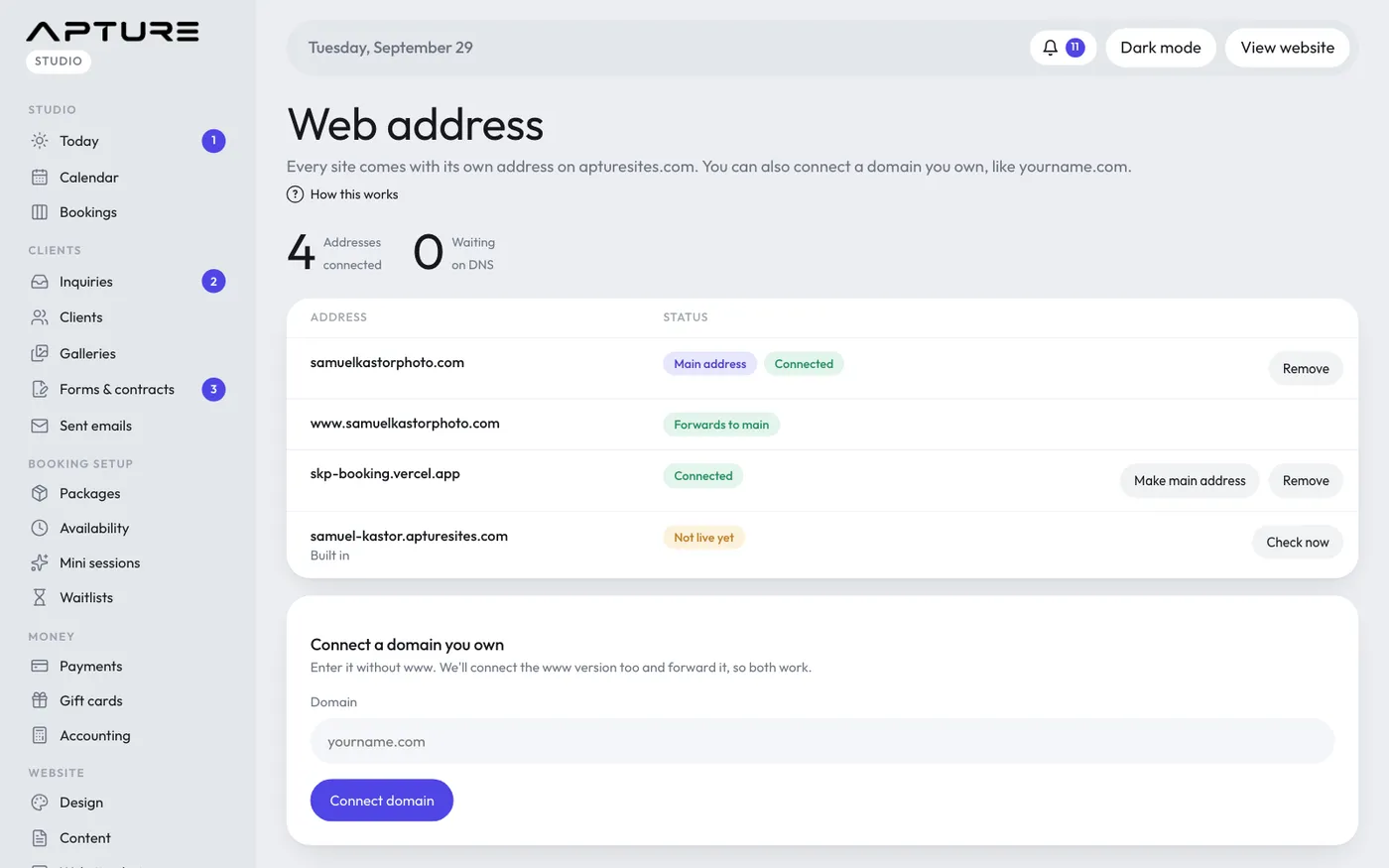
Your built-in address
Every site comes with its own address ending in apturesites.com, like yourstudio.apturesites.com. It's marked Built in and works from day one. You can't remove it, and if you disconnect your own domain it becomes your main address again.
Connect a domain you own
You need a domain you've already bought, from a company like GoDaddy, Squarespace, Namecheap or Cloudflare.
- Under Connect a domain you own, type it without www, like yourname.com.
- Click Connect domain. Apture adds the www version too and forwards it, so both work.
- A Set up box appears with the DNS records to add, in a table of Type, Name and Value.
- In another tab, sign in where you bought the domain and open its DNS settings.
- Remove any other A or CNAME record with the same name first.
- Add each record exactly as shown. For yourname.com that's usually an A record with the name @. For www it's a CNAME record with the name www. Sometimes a TXT record is shown too, to prove the domain is yours. Add that as well.
- Back in Apture, click Check now.
Changes usually show up within minutes, sometimes up to an hour. Until then the status says Waiting for DNS, with the result of the last check ("Last check: ...") if something wasn't right yet. When it says Connected, your site answers on that address.
Your main address
The first domain you connect becomes your Main address, and your other addresses forward to it. To change it, click Make main address on another connected address.
Disconnect a domain
Click Remove, type the domain to confirm, and click Disconnect. The www version goes with it.