
What your clients can do in a gallery
Favorites, passes, star ratings, the slideshow, photo sizes and downloads, from your client's side.
Here's what your client sees and can do once they're in.
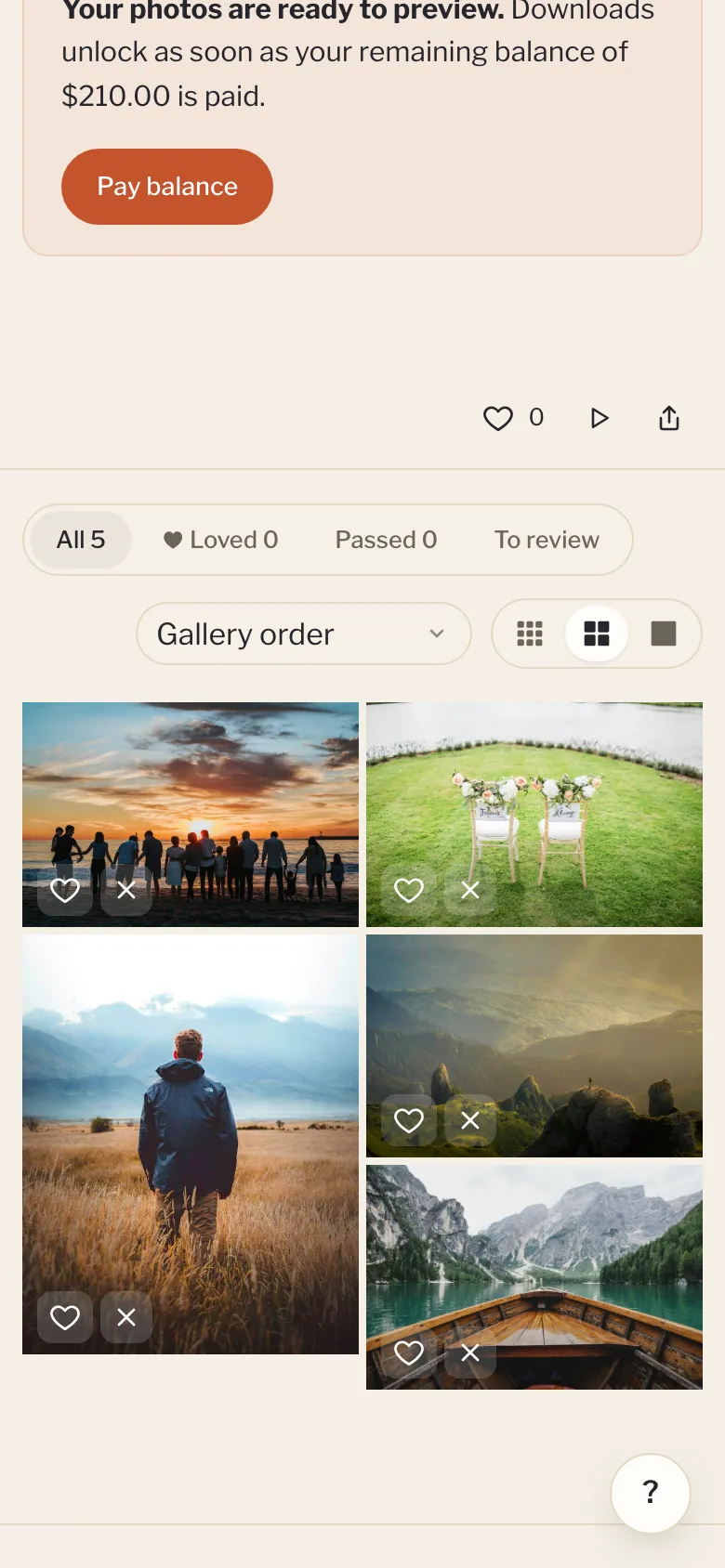
Browse
- The cover and title, then your welcome note.
- Scene tabs, if you've set scenes.
- A size control to show photos small, medium or large. Their choice is remembered on that device.
- Click any photo to open it full screen. Arrow keys move between photos and Escape closes it.
Favorites, passes and stars
On each photo, clients can:
- Love it (the heart), or press L.
- Pass on it, or press X.
- Give it 1 to 5 stars, or press 1 to 5. Clicking the same star again clears it.
They can filter to Loved, Passed or To review, and sort by Highest rated first. This needs an email on the gallery (see Email capture and passwords).
Slideshow
Click Slideshow. Photos change every 4 seconds. Space pauses and plays.
Downloads
Open Download to pick a size and download everything as a zip:
- Web & social (2048px)
- High resolution (4096px)
- Original (full res), if you allowed originals
Big galleries download in parts of about 2 GB each, chosen from a list. Clients who loved photos also get a button to download just those.
To download one photo, they open it and pick a size.
On iPhone and iPad, downloads go to the Files app. Clients can also tap Save to Photos on a photo, or save the ones they loved to Photos.
When downloads are locked
If you've locked downloads until the balance is paid, the Download button is hidden and photos show as smaller watermarked proofs. See Lock downloads until the balance is paid.
Expiry
If the gallery has an expiry date, the bottom of the page says when it's available until.