
A booking's page
Email the client, take payments, track the contract and questionnaire, assign a shooter, move and cancel.
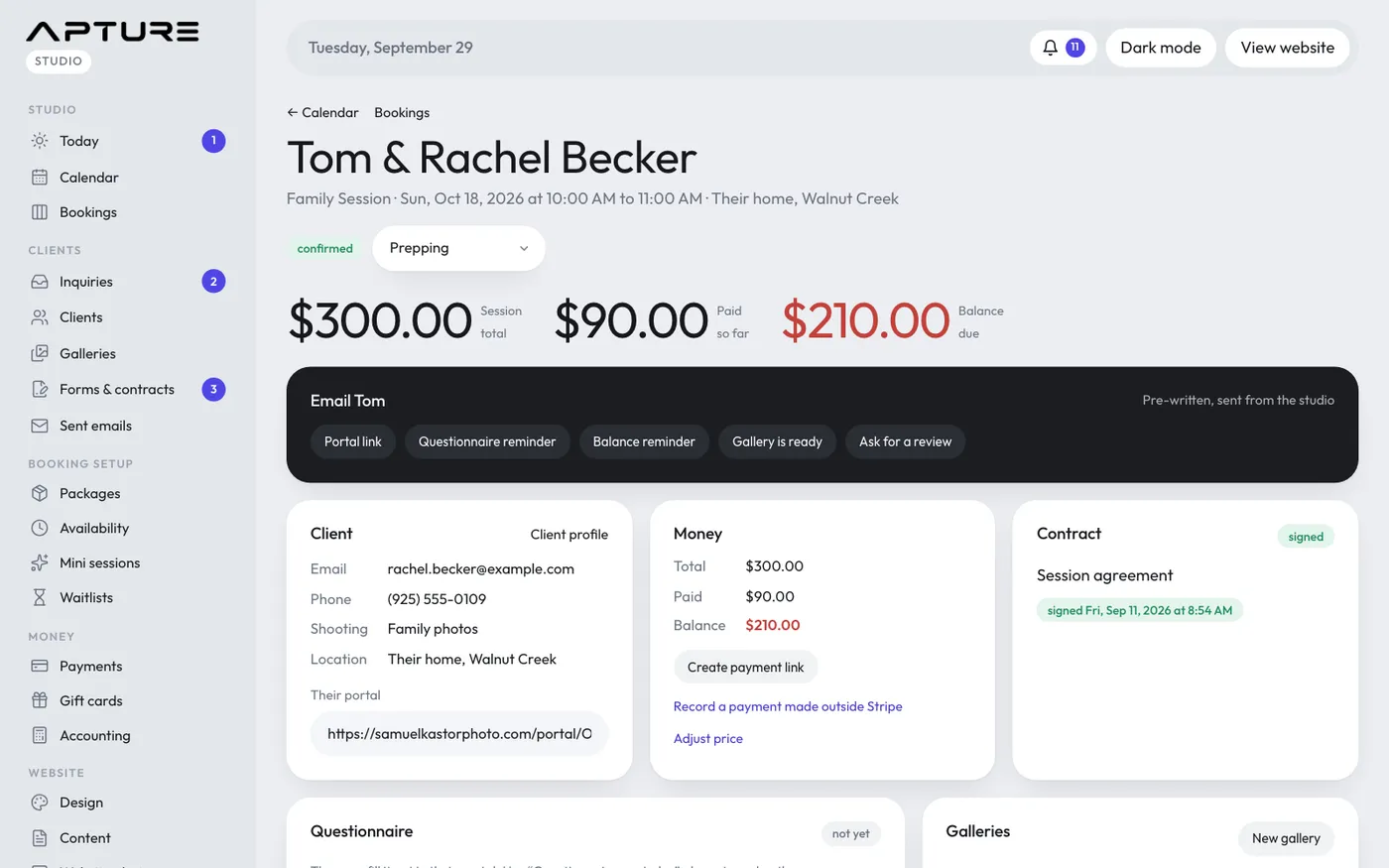
Click any booking on the Calendar, the Bookings board or a client's page to open it. The top shows the client, package, date, time and location, with the total, paid and balance.
Email the client
Confirmed bookings have a row of pre-written emails: Portal link, Questionnaire reminder, Balance reminder (when something is owed), Gallery is ready (once a gallery is published) and Ask for a review. Each sends straight away. Sent emails show under Activity.
Money
The Money card shows the price breakdown (premium, add-ons, discount), total, paid and balance.
- Create payment link (or Payment link) makes a Stripe link for the balance. It works for about a day. Clients can also pay any time from their portal. If Stripe isn't connected yet, you see "Finish connecting Stripe (Money > Payments > Online payments)" instead.
- Record a payment made outside Stripe: enter the Amount and Method, then Record payment. To record more than the balance (a tip, say), tick the box to confirm.
- A payment you recorded by hand (cash, Venmo and so on) has a Remove button, for owners and admins, if it was a mistake. Click twice to confirm.
- Adjust price: set a New total and Save price. The change shows under Activity, like "Price changed from $400 to $350". Refund in Stripe first, then lower the price here.
Card refunds are made in your Stripe dashboard, not with Remove. The payment here updates on its own.
Contract and questionnaire
The Contract card lists each contract with its status: waiting, opened or signed. Send contract sends your automatic contracts if none was sent yet. Resend emails the client the link again for any contract still waiting to be signed. Mark signed is for one signed on paper. The Questionnaire card shows the client's answers once they fill it in.
Who's shooting and private notes
If you have a team, tick who's shooting under Who's shooting and click Save. They get an email and see the session under My sessions, with your private notes and the questionnaire. Private notes are for you and your team, never the client.
Needs attention
A booking is marked needs attention when a deposit arrived after the time was taken, or when a client paid more than the total. A red note explains what happened. Sort it out with the client, then click Mark resolved. If the time now belongs to someone else, cancel instead and refund in Stripe.
Move or cancel
Use Move to another time to change the date or time, or Cancel booking… to cancel. See Rescheduling and cancellations.