
Help center / For your clients
Signing your contract
How to read and sign your agreement online, and where to find your signed copy.
After you book, your photographer sends your agreement to sign. You sign it online, on your phone or computer. There's nothing to print.
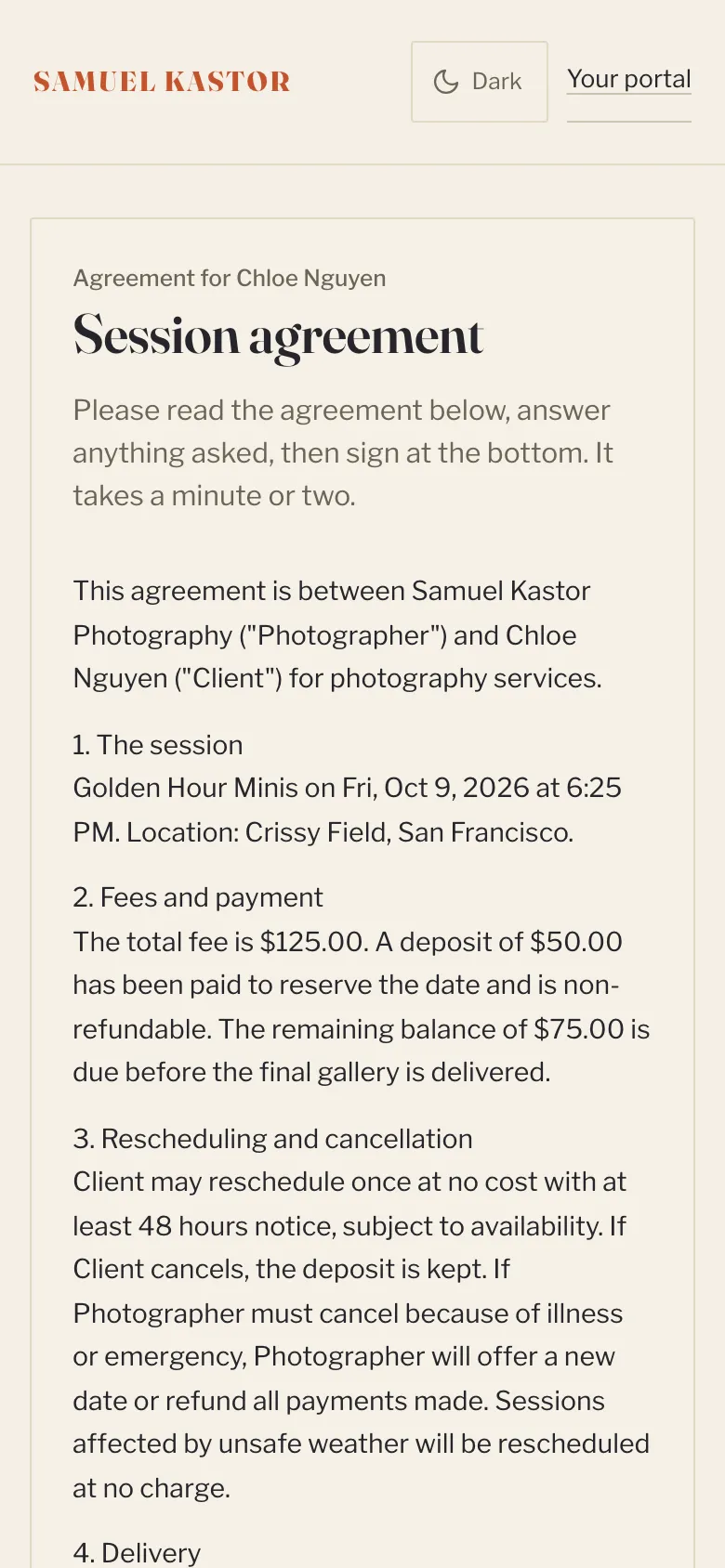
Finding it
- Open the email with the subject starting "Please sign" and click Review and sign, or
- open your client portal and click Sign now next to your contract.
Signing
- Read the agreement. Your name, session details and price are already filled in.
- Answer any questions below the terms.
- Type your full legal name.
- Draw your signature in the box with your finger or mouse.
- Tick the box to say you've read and agree to the terms, and agree to sign electronically.
- Click Sign and submit.
You'll see "Signed. Thank you!" and your portal shows the contract as signed.
Your signed copy
Straight after signing, you get an email with your signed copy attached as a PDF. You can also find it any time in your portal under Forms & contracts: click it to view it, or click PDF to download it. On the signed page you can click Download PDF or Download or print a copy.
The signed copy shows the date and time you signed, your email and a unique document number, so you and your photographer both have the same record.
Questions about the terms?
Ask your photographer before you sign. A contract can only be signed once, so if something needs changing, they'll send you a new one.