
Help center / Payments & money
Discount codes
Create codes clients enter on your booking page for a percentage or amount off.
Clients type a discount code on your booking page and see the new price before they pay.
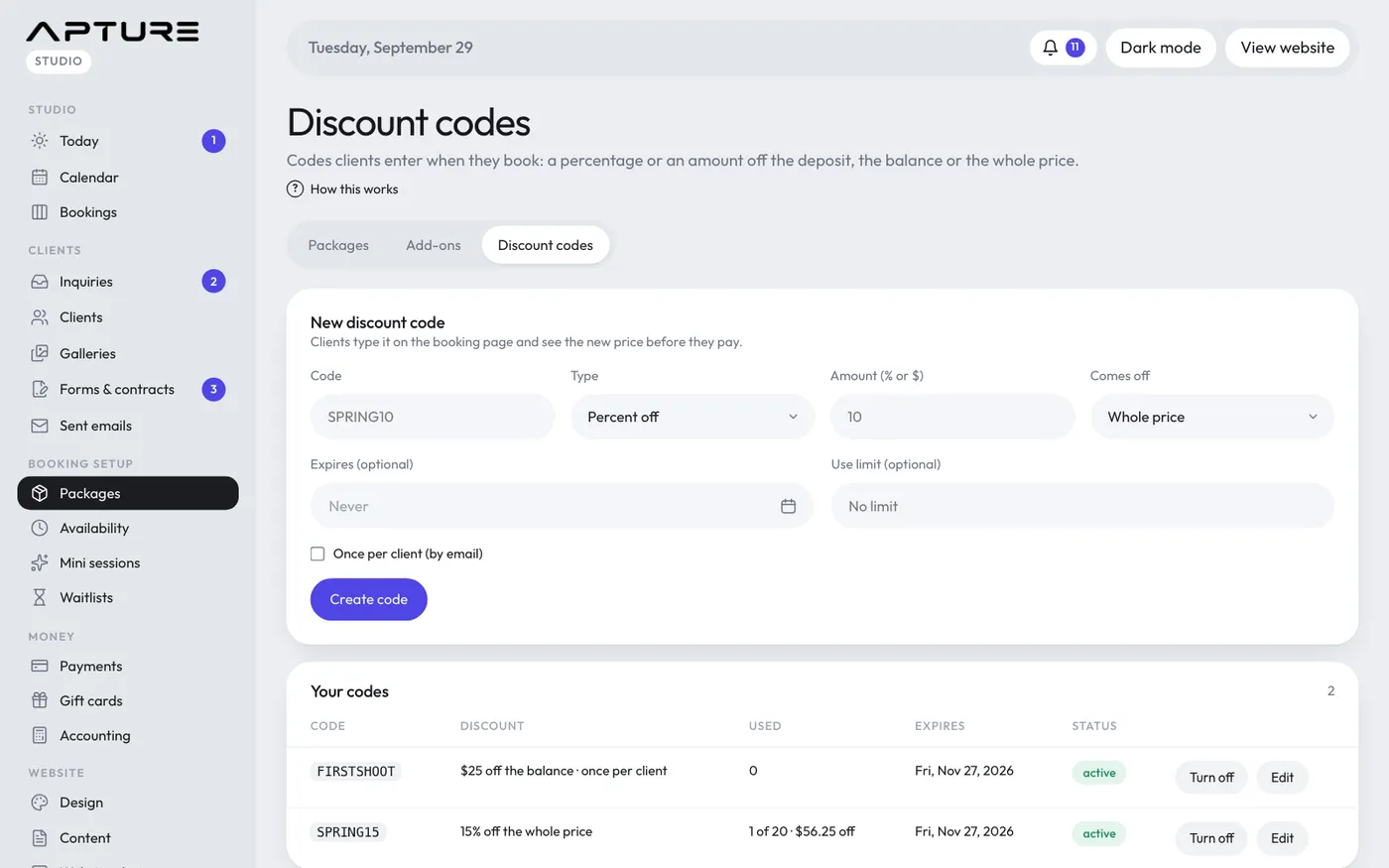
Create a code
- Go to Booking setup > Packages and open the Discount codes tab.
- Fill in New discount code:
- Code: 3 to 24 letters or numbers, like SPRING10. Capitals are used, and spaces are removed.
- Type: Percent off or Dollars off.
- Amount (% or $): 1 to 100 for a percentage, or $1 to $10,000.
- Comes off: Whole price, Deposit or Balance.
- Expires (optional): the last day it works. It works until the end of that day in your studio's time zone.
- Use limit (optional): how many bookings can use it in total.
- Once per client (by email): each email address can use it once.
- Click Create code.
How it works on the booking page
The Discount code box only appears on your booking page when you have at least one code that's on and not expired. Clients type the code and click Apply, and the price updates.
A discount never brings what's charged today below 50 cents, which is Stripe's minimum. Codes taken off the deposit or the whole price stop short of that.
Bookings that were abandoned before paying, or cancelled, don't count as uses.
If a client also has a gift card, the discount comes off first, then the gift card.
Your codes
The Your codes list shows each code's discount, how many times it's been used (and how much it has taken off in total), when it expires, and its status: active, off, expired or used up.
- Turn off / Turn on stops or restarts a code.
- Edit changes any of its settings. Click Save code.
- Delete code (inside Edit, click twice) removes it.
Bookings that already used a code keep their discount, even if you turn it off, change it or delete it.
For just one client
To give one client money off after they've booked, change the booking's price instead. See Adjust a booking's price.